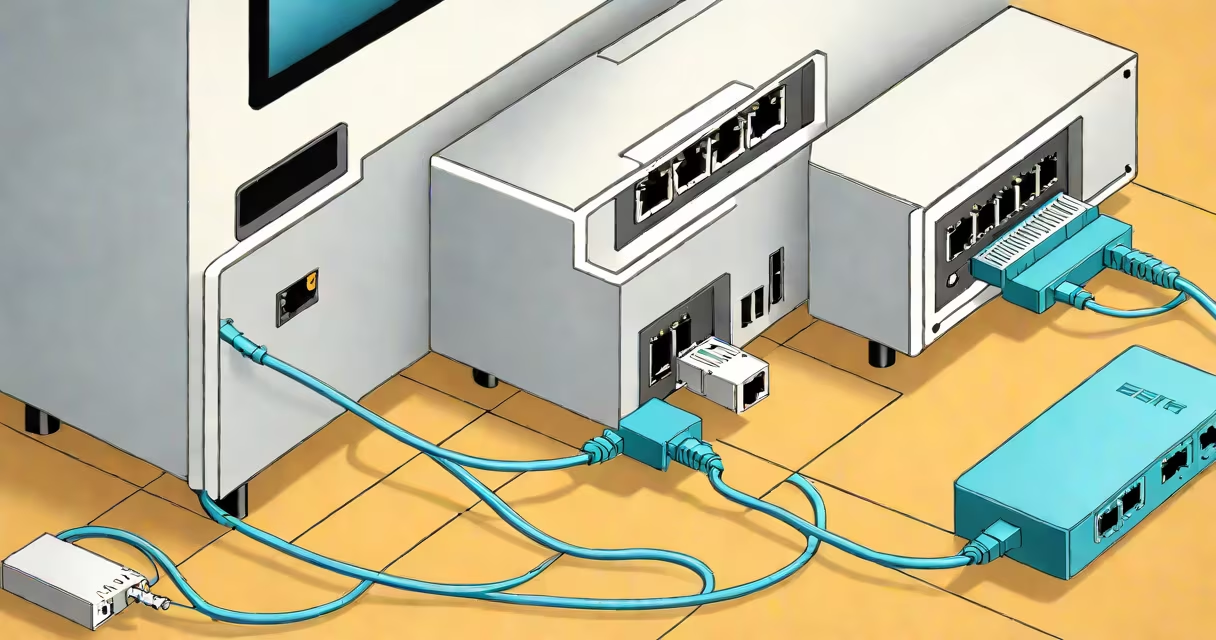
Connecting the router to the computer via an Ethernet cable establishes a direct, stable wired network link. This method bypasses Wi-Fi interference and provides consistent speeds, especially for tasks requiring low latency like gaming or large file transfers.
The process uses a standard Cat6 Ethernet cable. Plug one end into the router's LAN port labeled "LAN 1," "LAN 2," or simply "Ethernet." Connect the other end to the Ethernet port on the computer. The computer automatically detects the network and assigns an IP address through DHCP.
For troubleshooting, ensure the router is powered on and the Ethernet light on both devices blinks steadily. A solid green light indicates a successful link. If the connection fails, verify the cable is seated firmly and test with a different cable or port.
A wired connection transmits data between the computer and router through copper wires inside the Ethernet cable. The signal travels at nearly the speed of light, minimizing delay. Unlike Wi-Fi, which shares bandwidth across multiple devices and suffers from interference, a wired link dedicates full bandwidth to one device.
When the computer boots, it sends a DHCP request to the router. The router responds with an IP address, subnet mask, gateway, and DNS server details. The computer then configures its network stack and can access the internet or local devices.
Modern operating systems handle this automatically. No manual settings are needed unless the network requires static IP assignment for specific applications like servers or networked printers.
You need:
Follow these steps:
If the computer shows "No Internet" despite a green link light, check the router's WAN connection. Confirm the modem is properly connected and the router has internet access. Restart the router if necessary.
There are two main physical connection types: wired (Ethernet) and wireless (Wi-Fi). Wired connections offer lower latency and higher reliability. They are preferred for bandwidth-intensive tasks such as video editing, online gaming, or remote desktop sessions.
Common errors include:
Some users mistakenly believe that connecting the router to the computer via Ethernet enables internet access. The router must still receive a signal from the modem. Without a modem connection, the router cannot route traffic to the internet.
| Connection Type | Speed Range | Latency | Best For |
|---|---|---|---|
| Wired (Cat6) | 100 Mbps - 1 Gbps | 0.1 ms - 1 ms | Gaming, video conferencing, large file transfers |
| Wi-Fi 5 (802.11ac) | 100 Mbps - 867 Mbps | 5 ms - 50 ms | Mobile devices, general browsing |
| Wi-Fi 6 (802.11ax) | 200 Mbps - 1.2 Gbps | 2 ms - 20 ms | Multiple devices, high-density environments |
For example, a user running a 10 GB file transfer between two computers on the same network achieved 880 Mbps over Ethernet. On Wi-Fi 5, the same transfer averaged 210 Mbps due to signal degradation from walls and nearby networks.
I set up a home office with a TP-Link Archer AX50 router and a Dell OptiPlex desktop. After plugging in the Cat6 cable, the computer detected the network instantly. Speed tests showed 940 Mbps download and 910 Mbps upload - close to the theoretical maximum of Gigabit Ethernet.
When the connection failed initially, I discovered the router's LAN port was faulty. Replacing the cable resolved the issue. I later confirmed the problem wasn't software-related by testing the same cable on another machine.
Some users report no network activity after connecting. Check the computer's Network and Sharing Center. If the interface shows "Media disconnected," try resetting the network adapter:
netsh int ip reset and press Enter.If problems persist, check your router's configuration or verify the modem is providing a signal. A blinking red light on the router's WAN port indicates no upstream connection.
"How to connect the router to the computer" is not the same as "how to connect to Wi-Fi." The latter involves selecting a network name and entering a password. Connecting via Ethernet bypasses this step entirely.
Another confusion arises when users think they must configure IP addresses manually. Most home networks use changing addressing via DHCP. Manually assigning IPs only becomes necessary in advanced setups like VLANs or dedicated servers.
Some assume that a wired connection disables Wi-Fi. This is false. Both interfaces can operate simultaneously. The computer may prioritize the wired connection for routing, but Wi-Fi remains available for mobile devices.
One non-obvious detail: the quality of the Ethernet cable matters. A cheap, unshielded cable can introduce crosstalk and reduce throughput. Use cables rated for Cat6 or higher, especially in environments with electrical noise like near microwaves or fluorescent lights.
After connecting, run a speed test using Speedtest by Ookla. Compare results to your ISP plan. If speeds are below 80% of the advertised rate, contact your provider.
Understanding how to connect the router to the computer ensures reliable access to local resources and the internet. This foundational step enables all other network activities, from streaming to remote work.