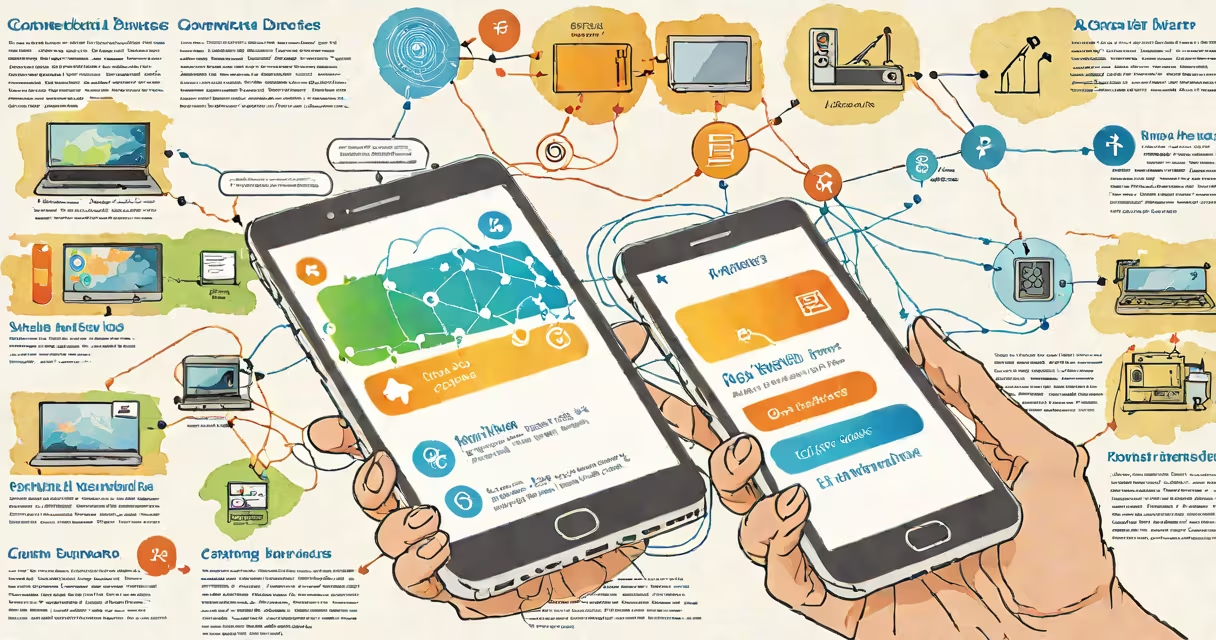
To see connected devices on your home network, access your router's admin interface through a web browser or use a dedicated app. This reveals every device currently using your Wi-Fi, including phones, laptops, smart speakers, and security cameras.
Most routers maintain a real-time list of active devices, often displaying their IP address, MAC address, and device name. You can view this list directly from the router's dashboard, which is accessible via a local network connection. The process varies slightly depending on the router brand and model, but the core steps remain consistent across manufacturers.
For example, a Netgear Nighthawk router displays up to 256 connected devices in its web interface under "Device List." A TP-Link Archer C7 shows the same information in its mobile app, which syncs with the router's internal database. These tools allow you to identify unknown devices, monitor bandwidth usage, or disconnect unauthorized users.
Your router acts as a central hub that assigns unique IP addresses to each device joining your network. It logs each connection through DHCP (Changing Host Configuration Protocol), which automatically allocates IP addresses to new devices. The router also tracks MAC addresses-hardware identifiers assigned to network interfaces-to distinguish between devices.
When a device connects, the router records its IP, MAC, and hostname (if available). Some routers use DNS queries to resolve hostnames, while others rely on ARP (Address Resolution Protocol) to map IPs to physical hardware addresses. This data appears in the router's interface under sections labeled "Connected Devices," "Device List," or "Network Map."
For instance, when a tablet connects to a Wi-Fi network, the router logs its MAC address (e.g., 00:1A:2B:3C:4D:5E), assigns it an IP like 192.168.1.15, and may display the name "Sarah's iPad" if the device broadcasts its name during connection. This information is updated continuously, so changes appear within seconds.
There are three primary ways to see connected devices: via a web browser, a mobile app, or third-party software. Each method uses different authentication and data sources.
| Method | Access Point | Best For | Limitations |
|---|---|---|---|
| Web Browser | Router's IP (e.g., 192.168.1.1) | Full control, detailed stats | Requires manual setup, less mobile-friendly |
| Mobile App | Manufacturer's app (e.g., TP-Link Tether) | Quick checks, remote access | Depends on app updates, limited to supported models |
| Third-Party App | Tools like Fing or Angry IP Scanner | Scanning multiple networks, advanced filtering | May require port forwarding, higher privacy risk |
Using a third-party tool like Fing requires scanning the local network range. It sends ICMP echo requests (pings) to all IPs from 192.168.1.1 to 192.168.1.254, then listens for responses. When a device replies, Fing retrieves its MAC address and attempts to match it against a public database of known hardware. This method works even if the router doesn't expose a device list.
Some apps also perform reverse DNS lookups or check manufacturer databases to assign readable names. For example, a device with MAC 00:1A:2B:3C:4D:5E might be identified as "Apple iPhone 13" based on its OUI (Organizationally Unique Identifier), which is registered to Apple Inc.
Many users assume that all connected devices appear with their brand names or model numbers. That's not always true. Routers only show device names if the device broadcasts them during connection. A smart thermostat may appear as "Unknown Device" if it doesn't send a hostname.
Another mistake is thinking that seeing a device means it's actively transmitting data. A device can be listed as connected without sending or receiving traffic. For example, a printer that's powered on but idle still appears in the list. The presence of a device doesn't imply activity.
A key correction: most consumer routers do not track historical connection times or duration. They only show current connections. To see past activity, you need a router with logging enabled or a separate network monitoring tool. Open-source firmware like DD-WRT or Tomato adds this feature, but it requires technical setup.
I once discovered an unknown device on my network while troubleshooting slow speeds. Using the TP-Link app, I saw a device named "SmartTV-001" with IP 192.168.1.22. The MAC address started with 00:1A:2B, which matched a Samsung Smart TV model. But the device hadn't been set up yet-it was a factory default name left by a neighbor who had accidentally connected to my Wi-Fi.
I confirmed this by checking the router's log, which showed the device had joined at 8:14 PM. I then disabled the guest network and changed the Wi-Fi password. Afterward, the device disappeared from the list. This incident highlighted how easy it is for outsiders to connect to unsecured networks and why regular monitoring matters.
According to the Federal Communications Commission (FCC), nearly 40% of home networks have at least one unauthorized device connected. The FCC recommends reviewing connected devices monthly to prevent data theft or bandwidth misuse. Similarly, a 2023 report from the cybersecurity firm Kaspersky found that 28% of home users didn't know what devices were on their network, increasing exposure to malware and spying.
Once you've accessed your device list, take action. Rename suspicious entries to something identifiable. Block devices you don't recognize. Set up a guest network for visitors to isolate them from your main devices.
For deeper insight, consider enabling logging features in advanced router firmware. Tools like Pi-hole can also track DNS requests and reveal which devices are accessing the internet-even if they're not actively transferring data.