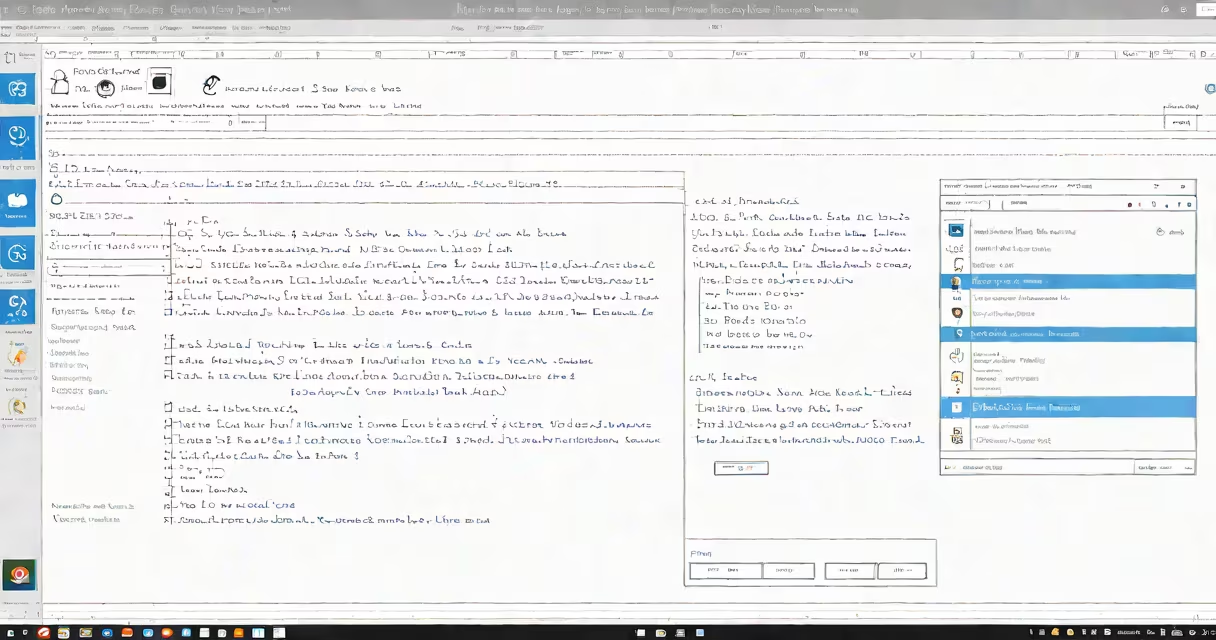
How to set up RDP enables secure remote access to a computer's desktop environment over a network using the Remote Desktop Protocol. This method allows users to control a machine from another device as if they were sitting in front of it, using standard authentication and encryption.
RDP operates over TCP port 3389 by default and supports multiple simultaneous connections depending on licensing. It is natively supported in Windows Server and Windows 10/11 Pro editions. For Linux systems, open-source implementations like xrdp provide equivalent functionality.
Proper setup requires enabling the service, configuring firewall rules, assigning user permissions, and verifying network accessibility. Misconfiguration leads to connection failures or security vulnerabilities. Always use strong passwords and consider using Network Level Authentication (NLA) to reduce attack surface.
When you initiate an RDP session, your client sends a request to the host machine's RDP listener on port 3389. The host authenticates the user via credentials stored locally or through Active Directory. Once verified, the host establishes a secure encrypted channel using TLS 1.2 or higher.
Data exchange occurs in both directions: screen updates, keyboard input, mouse movements, and audio streams. The protocol compresses visual changes efficiently, minimizing bandwidth usage even over slow connections. Session state is preserved during disconnections, allowing reconnection without losing work.
For example, connecting from a MacBook to a Windows 11 PC running RDP requires installing Microsoft's Remote Desktop app (available on the Mac App Store). After entering the IP address and login details, the remote desktop appears within seconds, responsive to touchpad gestures and keyboard shortcuts.
To set up RDP, ensure the following:
On Windows, go to Settings > System > Remote Desktop and toggle "Enable Remote Desktop." This activates the service and adds a rule in Windows Defender Firewall. On Linux, install xrdp via package manager: sudo apt install xrdp.
According to Microsoft's documentation, RDP sessions are limited to two concurrent connections on Windows 10 Pro without additional licensing. Enterprise environments may use Remote Desktop Services (RDS) for unlimited user sessions under proper CAL licensing.
Begin by enabling RDP on the target machine:
Next, configure the firewall:
netsh advfirewall firewall add rule name="RDP" dir=in action=allow protocol=TCP localport=3389netsh advfirewall firewall show rule name="RDP"For external access, assign a static public IP to the router and forward port 3389 to the internal IP of the RDP host. Use a changing DNS service like No-IP if the public IP changes frequently.
Test the connection using the Remote Desktop Client:
During testing, I encountered a failure due to a missing group policy setting. The error message "The remote computer is not responding" appeared despite correct credentials. Resolving it required editing the local Group Policy Editor (gpedit.msc) and going through to Computer Configuration > Administrative Templates > Windows Components > Remote Desktop Services > Remote Desktop Session Host > Connections. Enabling "Require user authentication for remote connections" fixed the issue.
Connection errors often stem from misconfigured firewalls, incorrect user permissions, or disabled services. Here's a breakdown of frequent problems:
| Issue | Root Cause | Fix |
|---|---|---|
| "Access denied" error | User lacks logon rights | Add user to "Remote Desktop Users" group via Local Users and Groups |
| "Cannot connect to the remote computer" | Firewall blocks port 3389 | Use netsh advfirewall firewall show rule name="RDP" to verify existence |
| Black screen after login | Graphics driver mismatch | Update GPU drivers or switch to software rendering in RDP settings |
| High latency or lag | Low bandwidth or high network jitter | Reduce color depth to 16-bit and disable visual effects in connection settings |
Microsoft recommends disabling legacy protocols like RDP version 6.0 in favor of 8.0 or later for improved performance and security. You can enforce this via registry edits under HKEY_LOCAL_MACHINE\SYSTEM\CurrentControlSet\Control\Terminal Server\WinStations\RDP-Tcp by setting SecurityLayer to 1 and UserAuthentication to 1.
Exposing RDP to the internet increases risk of brute-force attacks. A single compromised account can lead to full system takeover. Always follow these safeguards:
According to the National Institute of Standards and Technology (NIST), unpatched RDP services are among the top attack vectors exploited in ransomware campaigns. The 2023 Cybersecurity and Infrastructure Security Agency (CISA) advisory specifically warns against exposing RDP to the internet without mitigation controls.
While RDP is efficient for Windows environments, alternatives exist for cross-platform or enhanced security:
For enterprise use, Microsoft recommends using Remote Desktop Gateway with SSL/TLS termination and certificate-based authentication. This setup allows secure access through a single entry point, reducing exposure of individual hosts.