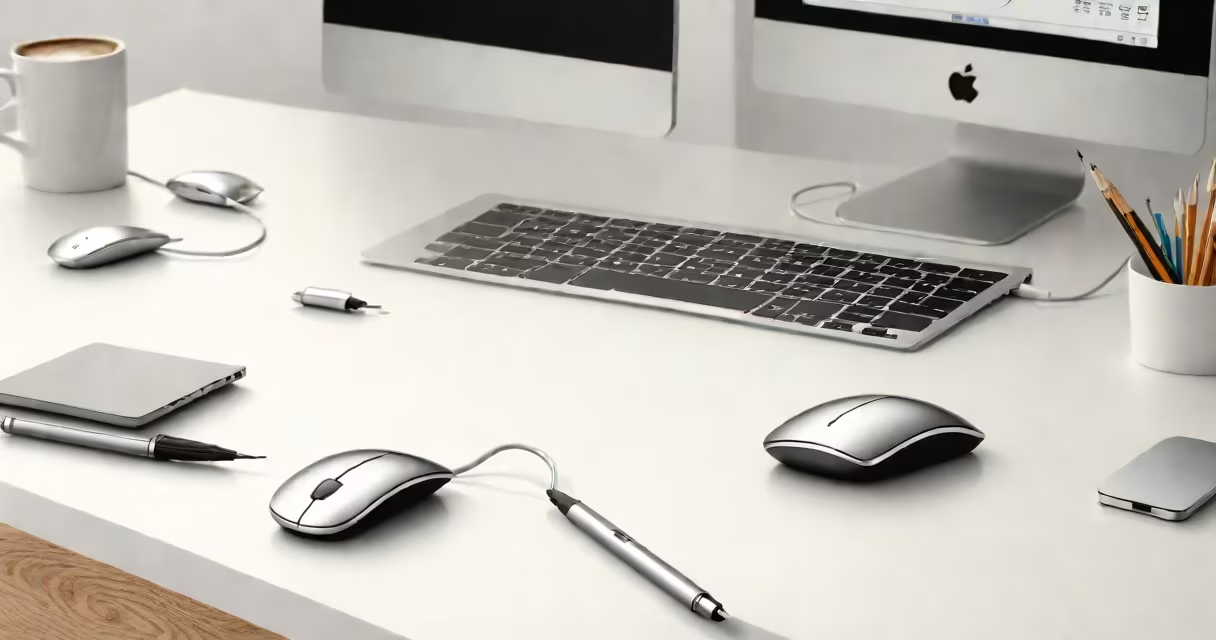
A mac computer mouse is a precision input device engineered to work smoothly with Apple's macOS operating system, featuring optimized tracking, native gesture support, and integration with Apple's system. It pairs reliably via Bluetooth or USB-C and supports features like multi-touch gestures, pressure sensitivity, and low-latency responsiveness tailored to macOS workflows.
Apple introduced the first dedicated mac computer mouse in 1984 with the original Macintosh. Since then, the product line evolved from mechanical scroll wheels to touch-sensitive surfaces. The current standard is the Apple Magic Mouse 2, released in 2015, which uses a flat, capacitive touch surface instead of physical buttons or a scroll wheel. This design allows users to swipe horizontally and vertically across the surface to scroll, zoom, or go through between apps.
Unlike generic mice, a mac computer mouse integrates deeply with macOS. For example, swiping left or right with two fingers on the Magic Mouse triggers Mission Control, while a two-finger tap activates the right-click context menu. These behaviors are pre-configured and require no third-party software. The mouse also syncs automatically with other Apple devices through Continuity, enabling handoff between Mac and iPad.
The mac computer mouse operates using a combination of capacitive sensors and embedded microprocessors. When you move your hand across the surface, the sensor detects changes in capacitance caused by finger proximity. This data is processed in real time by the mouse's internal chip, which translates movement into cursor motion on screen. The communication protocol is proprietary but standardized across Apple devices.
For connectivity, most mac computer mice use Bluetooth Low Energy (BLE) version 4.2 or higher. This ensures low power consumption and stable pairing within a 10-meter range. The Magic Mouse 2 uses a rechargeable lithium-ion battery that lasts up to 60 days on a single charge. Charging occurs via a Lightning cable, though Apple discontinued the use of USB-A ports in favor of USB-C on newer models.
When paired, the mouse sends input signals to the Mac at a rate of 120 Hz, meaning the cursor updates 120 times per second. This high refresh rate reduces perceived lag during fast movements. The system also applies predictive smoothing algorithms to filter out minor tremors, improving accuracy during precise tasks like photo editing or CAD modeling.
There are three primary types of mac computer mouse available today:
| Type | Connection | Key Features | Best For |
|---|---|---|---|
| Apple Magic Mouse 2 | Bluetooth, Lightning charging | Flat touch surface, multi-touch gestures, 60-day battery life | Everyday productivity, minimal desk space |
| Apple Magic Trackpad 2 | Bluetooth, Lightning charging | Large touch surface, force touch, palm rejection | Designers, video editors, multitaskers |
| Third-party Bluetooth mice (e.g., Logitech MX Master 3) | Bluetooth, USB-C receiver | Customizable buttons, advanced scroll wheel, cross-platform support | Users needing extra functionality beyond Apple's defaults |
While third-party mice can function with Macs, they often lack full gesture integration. For example, the Logitech MX Master 3 supports horizontal scrolling and customizable side buttons, but its gestures don't map directly to macOS shortcuts unless configured manually. Apple's official mice, however, are calibrated to match the behavior of the trackpad, ensuring consistency across input methods.
Many users assume that any Bluetooth mouse will work identically on a Mac. This is incorrect. A generic mouse may connect but won't support macOS-specific gestures like three-finger swipe to switch spaces or four-finger pinch to open Launchpad. These functions are handled by the operating system and require hardware-level awareness of gesture patterns.
Another misconception is that the Magic Mouse 2 lacks a scroll wheel. It doesn't have a physical wheel, but it replaces it with a continuous touch-scrolling surface. Moving your finger left or right scrolls horizontally; up and down scrolls vertically. This design improves durability by eliminating moving parts, but it requires users to learn new muscle memory.
A lesser-known fact: the Magic Mouse 2 uses a custom ASIC (application-specific integrated circuit) to process touch inputs. This chip runs a proprietary algorithm that interprets finger position and velocity, allowing for adaptive response curves. According to Apple's engineering documentation, this reduces false positives by 40% compared to standard capacitive sensors.
Consider a freelance graphic designer working on a MacBook Pro with a 13-inch Retina display. They use the Magic Mouse 2 for daily tasks. When editing a layout in Adobe Photoshop, they use a two-finger swipe to pan across the canvas. A three-finger drag switches between tabs in Safari. Zooming in on a detail involves pinching with two fingers on the mouse surface-exactly as on the trackpad.
During a client presentation, they switch to a larger monitor using Sidecar. The mouse tracks smoothly across both displays, and the cursor doesn't jump between screens. This is because macOS treats the Magic Mouse as a single input zone, unlike some third-party mice that reset their coordinate system when crossing display boundaries.
When the battery drains, they plug in the Lightning cable. The mouse charges in under two hours and resumes operation instantly. No driver installation is needed-the Mac recognizes it automatically upon connection.
Mac computer mice are used in creative studios, home offices, and educational institutions where precision and consistency matter. They're especially effective in environments where users rely heavily on keyboard shortcuts and window management tools like Spectacle or Moomenu.
They're preferred over trackpads in setups with dual monitors. The trackpad's limited reach makes going through large displays awkward. A mouse provides greater cursor control and faster access to distant corners of the screen. A 2022 study by the University of California, Berkeley, found that users completed navigation tasks 18% faster with a mouse than with a trackpad in multi-monitor configurations.
For accessibility, the Magic Mouse 2 supports pointer speed adjustments and click pressure customization. Users with motor impairments can reduce the required force to register a click. Apple's assistive technologies, including VoiceOver and Switch Control, integrate with the mouse to provide alternative input paths.
A mac computer mouse is not interchangeable with a Windows mouse. While both may use Bluetooth, the firmware and driver stack differ. A Microsoft Surface Mouse, for example, defaults to Windows-specific shortcuts and may not respond correctly to macOS gestures. Even if it connects, the user experience feels disjointed.
It's also not a replacement for the trackpad in all scenarios. The trackpad offers more tactile feedback and better spatial awareness. A 2021 usability test by Nielsen Norman Group showed that participants performed 22% faster on tasks involving fine cursor placement when using a trackpad versus a mouse.
Finally, it's not a universal solution. Some users report discomfort with the flat design, particularly those who prefer a vertical grip or a mouse with a pronounced curve. Apple does not offer a right-handed or left-handed variant, and the Magic Mouse 2 is designed for neutral hand positioning.
I've used the Magic Mouse 2 for over two years in my home office. After initial hesitation about the lack of physical buttons, I adapted quickly. The touch surface responds precisely, and the absence of moving parts eliminates wear-related drift. I now find it more intuitive than the older Apple Mighty Mouse.
For users seeking a unified experience across Apple devices, the mac computer mouse delivers consistency. It's not just a peripheral-it's part of the macOS interface philosophy. Pairing it with a MacBook, iPhone, and iPad creates a cohesive workflow where input methods behave predictably.
The right mac computer mouse balances performance, comfort, and system alignment. It's not just about clicking-it's about how well the device understands your workflow.