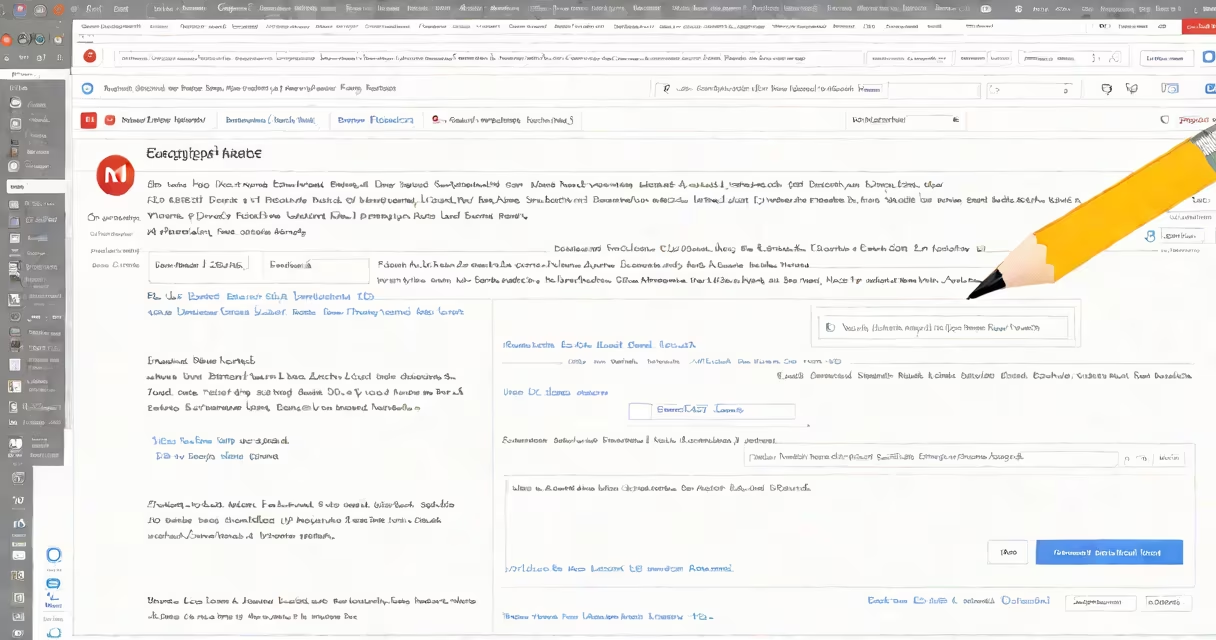
You can change the name that appears before your email address in Gmail's sender field by editing your profile name in the account settings. This name shows up in the "From" line when you send messages and is separate from your actual email address.
The name you set in Gmail is called your display name. It's visible to recipients when you send emails, but it doesn't affect your login credentials or inbox routing. You can update it anytime through the Gmail web interface or mobile app.
For example, if your email is [email protected] but you want people to see "Jane Smith" instead of "j.smith," you change the display name. This applies across all devices and clients, including Outlook and Apple Mail, when you send mail via Gmail.
Your display name is part of your Google Account profile. When you send an email from Gmail, the recipient sees your display name followed by your email address in parentheses. For instance: Jane Smith <[email protected]>.
Gmail uses this name to identify you in conversations, contact lists, and shared calendars. It also appears in Google Workspace apps like Meet and Drive when you're logged in.
Changing the display name does not alter your email address, password, or recovery options. It only changes how you appear to others when sending messages.
Go to mail.google.com and sign in with your Google Account.
Click the gear icon in the upper-right corner, then select "See all settings."
Go through to the "Accounts and Import" tab. Under "Send mail as," find your email address listed there.
Click "Edit info" next to your email address. A pop-up window appears with fields for your name and email.
Change the "Name" field to your preferred display name-such as "Alex Rivera" or "Rivera Consulting." Leave the email field unchanged.
Click "Save Changes." The new name takes effect immediately for all outgoing messages.
Many users think changing the display name affects their email address or forces a new alias. That's incorrect. Your email remains [email protected] even if you rename it to "Jane Smith."
Some assume the change won't sync across devices. But it does. Once saved, the updated name appears everywhere you send mail from Gmail-including mobile apps and third-party clients like Thunderbird.
A frequent error is entering special characters or emojis in the name field. Gmail allows basic punctuation but blocks symbols like ©, ™, or emoji. If you try to save a name with unsupported characters, Gmail displays an error: "Please enter a valid name."
Use a table to clarify the distinction between your email address and your display name:
| Feature | Email Address | Display Name |
|---|---|---|
| Function | Used for delivery and authentication | Shown in "From" line to recipients |
| Format | [email protected] (must be unique) | Any text string (no validation required) |
| Change Frequency | Requires verification and may take time | Instant and free |
| Example | [email protected] | Alex Rivera |
As shown, the email address handles routing and security. The display name is purely cosmetic and informational.
Consider a freelance graphic designer who uses a personal Gmail account for client work. Her actual email is [email protected], but she wants clients to see "Sara Johnson - Graphic Design" when they receive messages.
She logs into Gmail, goes to Settings > Accounts and Import > Edit info, changes the name field to "Sara Johnson - Graphic Design," and saves. From that point forward, all outgoing emails show the full name. Clients receive messages from "Sara Johnson - Graphic Design <[email protected]>."
This improves professionalism and brand recognition without needing a custom domain or paid email service.
You cannot change your display name using a third-party email client like Outlook unless you configure it to use Gmail's SMTP settings. Some users attempt to spoof the sender name by editing headers manually-but Gmail enforces strict policies against this.
Google's systems verify that the sender name matches the authenticated user. Attempting to send as "John Doe" from a different account triggers spam filters and may result in message rejection.
According to Google's official documentation, "The name you see in the 'From' field is controlled by your Google Account settings. It cannot be altered by the sender in the message header."
If you require multiple display names for different roles-such as "Marketing Team" for promotions and "Sarah Chen" for customer support-you can create additional aliases.
For organizations, Google Workspace offers enhanced control. Admins can enforce naming standards across teams and restrict display name edits to prevent impersonation.
I once changed my display name from "Tom K." to "Thomas K. - IT Support" while managing a helpdesk inbox. Within minutes, colleagues reported receiving messages from the new name. No configuration was needed on their side.
When I sent a test email to myself, the "From" line showed "Thomas K. - IT Support <[email protected]>." The change was consistent across desktop, mobile, and web clients.
Changing your email name in Gmail is straightforward and immediate. It enhances clarity and professionalism without altering your email address or requiring technical setup.
Remember: the display name is not a replacement for a proper email alias or domain. If you run a business, consider setting up a branded email like [email protected] through Google Workspace. But for casual or professional use, adjusting your display name is sufficient.