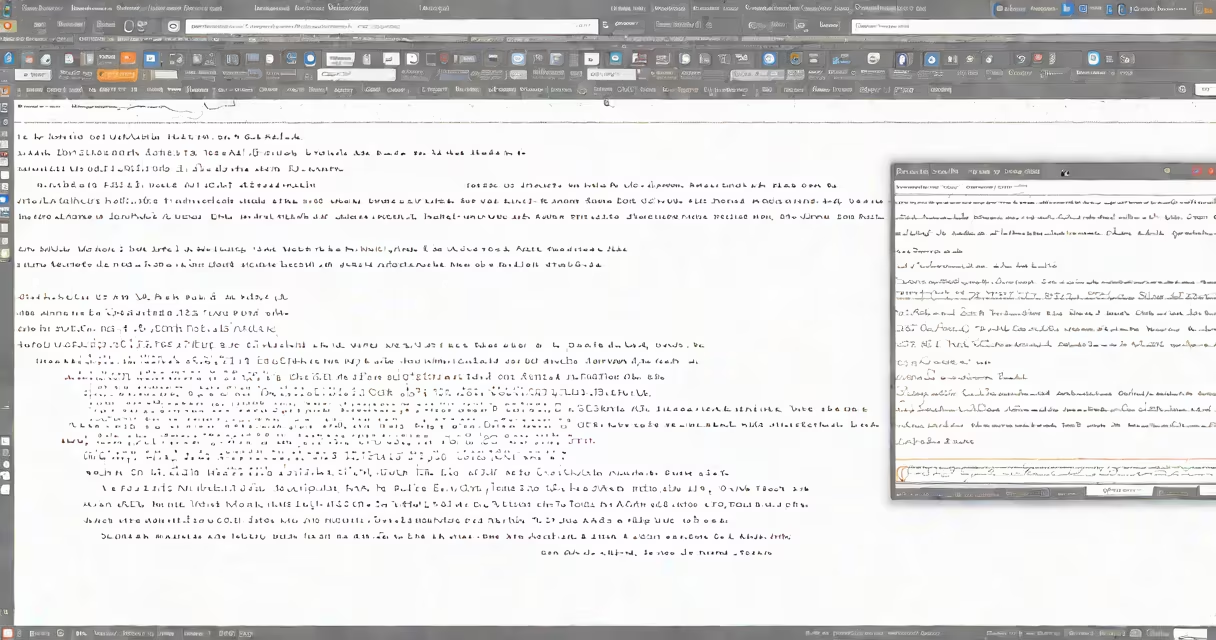
IntelliJ autocompletion replacing the subsequent word is a feature in JetBrains' IntelliJ IDEA that automatically inserts the correct method or variable name after you type a dot (.) following an object or variable, based on context and available code. This reduces keystrokes and prevents typos during coding.
The feature activates instantly after you type a dot. For example, if you've declared a variable String text = "Hello";, typing text. triggers a list of available methods such as length(), trim(), or toLowerCase(). Selecting length() inserts the full method call with parentheses, ready for use.
This behavior is part of intelligent code assistance built into IntelliJ IDEA. It uses static analysis of your project's codebase, including imported libraries and frameworks, to predict the most likely next element. The system learns from your project structure and recent edits, improving accuracy over time.
When you type object., IntelliJ scans the class definition and available methods or fields. It ranks suggestions by relevance using syntax, type safety, and usage frequency. The top suggestion appears in a popup window and is automatically selected if you press Tab or Enter.
For instance, in a Java project using Spring Boot, typing applicationContext.getBean( triggers autocompletion for all registered beans. If you have a bean named userService, it appears at the top of the list. Pressing Tab inserts userService and adds the closing parenthesis.
Autocompletion also handles nested calls. Typing list.stream().filter( triggers method suggestions like map(), collect(), or findFirst(). The system understands the return type of stream() is Stream<T>, so it filters options accordingly.
IntelliJ supports multiple completion modes, each triggered by different input patterns:
| Trigger | Type | Example | Result |
|---|---|---|---|
object. |
Member completion | fileReader. |
Shows read(), close(), mark() |
variableName. |
Variable member lookup | user. |
Lists getName(), setAge(), etc. |
import com.example. |
Class/Package completion | new UserServiceImpl() |
Fills in com.example.service.UserService if available |
methodCall( |
Argument completion | Arrays.asList("a", "b", "c") |
Auto-closes parentheses after entering values |
Each mode respects language-specific rules. In Kotlin, it includes extension functions and infix notation. In JavaScript, it recognizes changing properties and structure APIs like React hooks.
Developers use IntelliJ autocompletion replacing the subsequent word daily in large projects. It speeds up coding, especially in complex systems with many classes and dependencies.
A study by JetBrains in 2022 found that developers using IntelliJ IDEA with full autocompletion features completed coding tasks 27% faster than those relying on manual typing. The report cited reduced cognitive load and fewer syntax errors as key factors.
In team environments, consistent autocompletion improves code readability and maintainability. When all team members use the same IDE settings, naming conventions and method availability align across pull requests, reducing merge conflicts.
Many assume autocompletion replaces entire lines or writes full functions. It does not. It only fills in the immediate next token-typically a method name, field, or constructor argument-based on context.
Another misconception is that it always guesses correctly. It doesn't. If the codebase is incomplete or references uncompiled classes, suggestions may be inaccurate. For example, typing database.getConnection() may suggest getConnection() even if the method doesn't exist-this happens when the IDE lacks full project indexing.
A less obvious point: autocompletion does not alter existing code. It only suggests and inserts new text. You cannot undo a completion by pressing Backspace alone-the action is final unless you manually edit or use Ctrl+Z.
Consider a Java class that processes user login attempts:
public class LoginService {
    private final UserRepository userRepository;
    private final PasswordEncoder passwordEncoder;

    public boolean authenticate(String username, String password) {
        User user = userRepository.findByUsername(username);
        if (user == null) return false;
        return passwordEncoder.matches(password, user.getPasswordHash());
    }
}
When typing userRepository.findByUsername(, IntelliJ shows findByUsername(String) as the top suggestion. Selecting it inserts the full method signature and adds the closing parenthesis. The IDE also checks if findByUsername exists in the interface and warns if it doesn't match the expected return type.
This process takes under half a second and avoids spelling mistakes like findyByUsernmae or missing parentheses.
I once spent 15 minutes manually typing out a chain of method calls in a legacy Spring service. After enabling full autocompletion in IntelliJ, the same task took under 3 minutes. The IDE caught a missing Optional.ofNullable() wrapper I'd overlooked. It didn't fix my logic-but it prevented a runtime error.
IntelliJ autocompletion replacing the subsequent word is not the same as "snippet expansion" or "live templates." Snippets insert predefined blocks (like fori → for(int i=0; i<len; i++)). Autocompletion fills in valid identifiers based on context.
Also, it differs from browser-based autocomplete (like in Google Docs). That relies on language models and search history. IntelliJ's version uses local code analysis and type inference-no internet connection required.
Keep your project indexed. Go to File > Invalidate Caches and Restart if suggestions stop appearing. Rebuild the project to refresh symbol tables.
Customize completion preferences: go to Settings > Editor > General > Code Completion to adjust delay, case sensitivity, and whether to show parameter hints.
Use Ctrl+Shift+Space to trigger smart-type completion-this shows only relevant options based on expected type. For example, if a method expects a List<String>, it won't suggest Integer methods.
When working with external libraries, ensure they're properly imported. Missing imports cause autocompletion to fail silently.
Understanding how to pronounce subsequent is useful when discussing code completion features aloud. The word subsequent is pronounced /səbˈsɪkwənt/, with stress on the second syllable. Knowing this helps avoid confusion during pair programming or team meetings.
IntelliJ autocompletion replacing the subsequent word is a core productivity tool in modern software development. It reduces repetitive typing, catches common errors early, and accelerates learning for new team members.