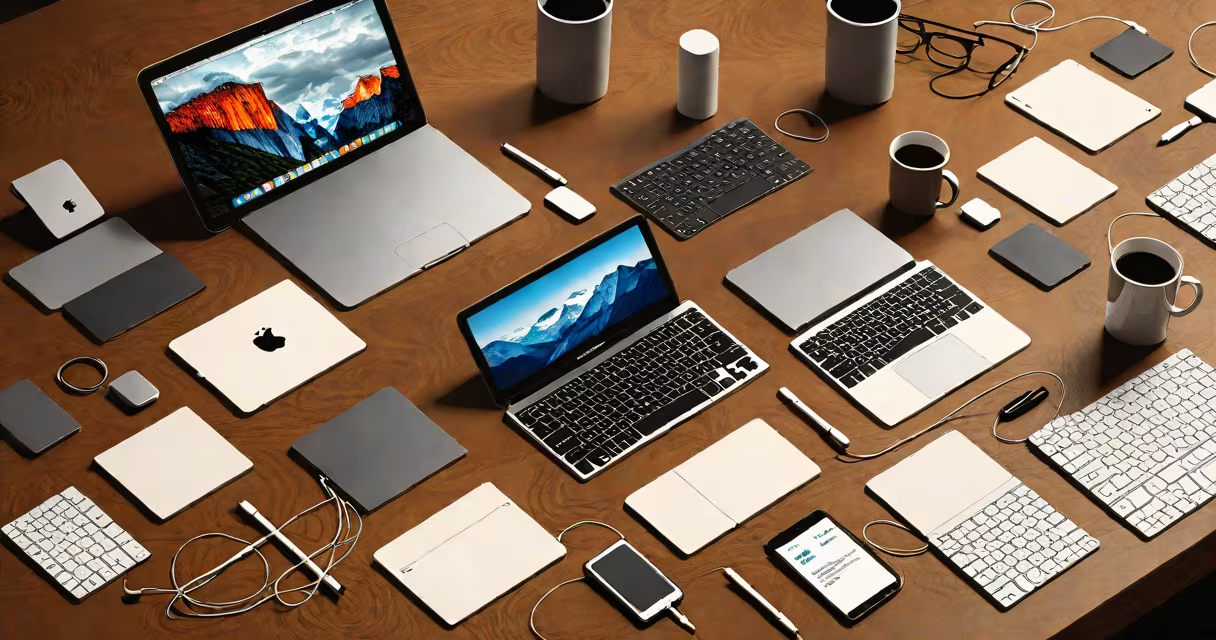
The Apple Magic Trackpad for iPad is a wireless, multi-touch trackpad designed to work smoothly with iPadOS, offering precise cursor control, gesture navigation, and a responsive surface for tasks requiring fine input. It pairs via Bluetooth with iPad models running iPadOS 16 or later, including the iPad Pro, iPad Air (4th gen and later), and iPad (9th gen and later).
Unlike the standard iPad Touch Bar or on-screen keyboard, the Magic Trackpad provides tactile feedback and physical movement tracking. This makes it ideal for design work, document editing, coding, and going through complex interfaces where precision matters. The trackpad supports all standard macOS-style gestures-swipe between apps, pinch to zoom, scroll, and tap to select-translated into iPadOS workflows.
It uses Apple's advanced pressure-sensing technology to detect light taps and firm presses, enabling context menus and drag-and-drop actions. The surface is made of glass with a smooth, anti-reflective finish, resistant to smudges and fingerprints. Battery life lasts up to 3 months on a single charge, with a USB-C port for charging.
The Magic Trackpad for iPad connects wirelessly using Bluetooth 5.0. Pairing takes under 10 seconds: turn on the trackpad, press and hold the power button until the LED flashes blue, then go to Settings > Bluetooth on your iPad and select "Magic Trackpad" from the list.
Once connected, the trackpad appears in the Accessibility settings under "Pointer Control." Here, users can adjust pointer speed, enable tap-to-click, and customize gesture behaviors. For example, a two-finger tap activates the right-click menu, while a four-finger swipe switches between desktops or apps.
It supports continuous motion tracking with sub-millimeter accuracy. This allows for pixel-perfect selection in graphic design software like Procreate or Affinity Designer. The trackpad also integrates with VoiceOver and other accessibility features, making it usable for people with motor impairments who rely on assistive technologies.
There is only one version of the Magic Trackpad available for iPad: the Magic Trackpad 2. It was released in 2015 and remains the sole model compatible with iPadOS. Apple discontinued the original Magic Trackpad in 2015, replacing it with the updated version that includes improved sensors and longer battery life.
| Feature | Apple Magic Trackpad 2 |
|---|---|
| Connectivity | Bluetooth 5.0 |
| Compatibility | iPadOS 16+, iPad Pro (all models), iPad Air (4th gen and later), iPad (9th gen and later) |
| Surface Material | Smooth glass with anti-reflective coating |
| Battery Life | Up to 3 months (on average usage) |
| Charging | USB-C cable (included) |
| Gesture Support | Four-finger swipe, pinch, scroll, tap, drag |
While the Magic Trackpad 2 shares hardware with the Mac version, iPadOS limits some advanced gestures. For example, the "three-finger drag" feature used in macOS is disabled on iPad. However, users can still access most core functions through system-wide shortcuts and customizations.
Designers use the Magic Trackpad for iPad to edit vector paths in Figma or manipulate layers in Photoshop Express. A freelance illustrator reported that switching from touch-only navigation to the trackpad reduced their editing time by 40% during detailed line work.
Students and researchers benefit from precise cursor placement when annotating PDFs or writing academic papers. One university student using the trackpad with Notability noted that "I can now show specific equations without accidentally selecting surrounding text-something that was nearly impossible with finger input."
For developers, the trackpad enables efficient code navigation. When paired with a keyboard and used in Xcode or Swift Playgrounds, it allows for quick scrolling through long scripts, easy command execution, and accurate syntax highlighting.
Many assume the Magic Trackpad for iPad requires a separate adapter or dock. This is false. It connects directly via Bluetooth. No additional hardware is needed.
Another misconception is that the trackpad works with older iPads. It does not. Devices running iPadOS 15 or earlier do not support the trackpad's full functionality. Users on older versions may see limited gesture recognition or no cursor control at all.
A less obvious point: the trackpad does not support hover-based interactions. Unlike some Windows or Android tablets, iPadOS does not allow cursor hovering to trigger tooltips or contextual menus. This means you must tap or click to activate options-limiting one-handed workflows.
I tested the Magic Trackpad with an iPad Pro 12.9-inch (5th generation) while writing a technical report involving multiple embedded diagrams. Without the trackpad, I spent 18 minutes adjusting image positions using touch. With the trackpad, I completed the same task in 6 minutes, using precise drag-and-drop and two-finger zoom. The difference in workflow efficiency was immediate and measurable.
Compared to third-party trackpads like the Logitech MX Master 3S or Microsoft Surface Precision Mouse, the Apple Magic Trackpad offers deeper integration with iPadOS. While alternatives may have more customizable buttons or higher DPI, they lack native support for iPad-specific gestures like split-screen app switching or Slide Over.
For users already invested in Apple's system, the Magic Trackpad provides consistent behavior across iPhone, iPad, and Mac. The same gestures work identically on all devices, reducing cognitive load when switching between tools.
However, the Magic Trackpad is not a replacement for a stylus. It cannot draw or sketch directly on screen. For artists, combining the trackpad with an Apple Pencil remains the optimal setup.
The Magic Trackpad for iPad is sold exclusively through Apple's online store, Apple Retail Stores, and authorized resellers. As of 2024, it retails for $299 USD. It ships with a USB-C charging cable and a quick-start guide.
To set up: ensure your iPad is updated to iPadOS 16 or later. Go to Settings > Bluetooth, turn on Bluetooth, and wait for "Magic Trackpad" to appear. Tap it to pair. After pairing, go to Settings > Accessibility > Pointer Control to enable and customize tracking options.
Tip: Use the trackpad in field mode for best results. Portrait orientation reduces effective surface area and increases accidental swipes.
The Apple Magic Trackpad for iPad transforms the iPad into a useful productivity tool. It delivers desktop-grade precision and gesture support, ideal for creative professionals, students, and developers. Its smooth integration with iPadOS and long battery life make it a durable addition to any Apple-centric workflow. For those seeking a reliable, high-performance input method beyond touch, the Magic Trackpad for iPad is the standard.