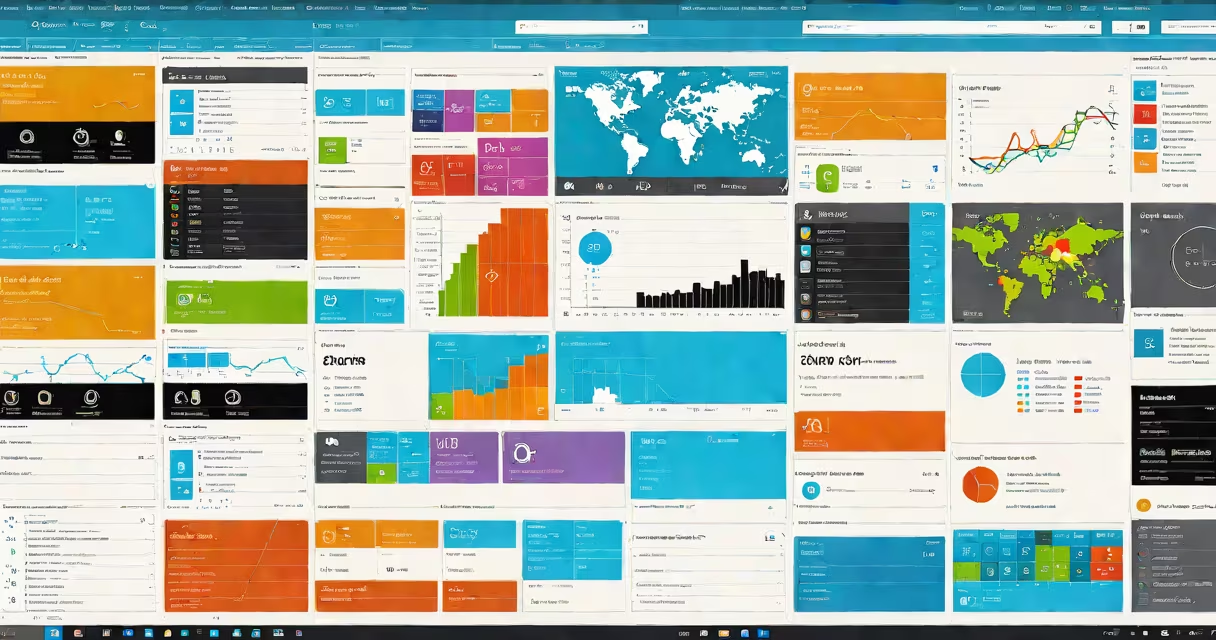
The azure cloud console is Microsoft's web-based interface for managing cloud infrastructure, applications, and services within the Azure platform. It provides centralized access to create, configure, monitor, and scale resources such as virtual machines, databases, networking components, and storage accounts through a browser.
Launched in 2010 and continuously updated, the console serves as the primary entry point for developers, IT administrators, and cloud architects working with Microsoft Azure. It supports role-based access control, integrates with identity providers like Azure Active Directory, and offers real-time monitoring via built-in dashboards and alerts.
Users sign in using a Microsoft account or organizational credentials. Once authenticated, they can manage multiple subscriptions, assign permissions, and track spending through cost analysis tools. The console is accessible from any device with internet connectivity and a modern browser.
The console operates as a single-page application hosted on Microsoft's global network. All interactions-such as launching a virtual machine or setting up a firewall rule-are processed through RESTful APIs behind the scenes. The interface sends requests to Azure's backend services, which validate permissions, provision resources, and return status updates.
Each action triggers a corresponding API call. For example, creating a new virtual machine involves sending a request to the Compute Resource Provider API. The system checks quotas, validates configuration parameters (like VM size and OS image), and returns a deployment ID. The console then displays progress in real time, updating the user interface based on polling responses.
Changes are logged in Azure Activity Log, which captures every operation performed in the console. This audit trail supports compliance reporting and troubleshooting. For instance, if a database was deleted accidentally, administrators can trace the event, identify the user, and restore from backups using the console's recovery tools.
The console consists of several core modules:
Access levels are determined by roles assigned via Azure Active Directory. Common roles include:
| Role | Permissions | Use Case |
|---|---|---|
| Contributor | Create, update, delete resources | Application developers deploying test environments |
| Reader | View resources only | Compliance auditors reviewing configurations |
| Owner | Full control, including assigning roles | Team leads managing entire subscriptions |
Administrators can also enable multi-factor authentication (MFA) and conditional access policies to restrict logins based on location, device, or risk level. These settings reduce the chance of unauthorized access even if credentials are compromised.
Organizations use the azure cloud console to automate infrastructure provisioning. For example, a software team at a mid-sized e-commerce company deployed a new product launch environment in under 20 minutes. They created a resource group, launched two virtual machines (one for the frontend, one for the backend), configured a load balancer, and set up an Azure Blob Storage container for product images-all through the console.
Another example: a healthcare provider used the console to set up a secure data lake. They created a dedicated storage account with private endpoints, enabled encryption at rest and in transit, and applied network security groups to limit access to specific IP ranges. The entire setup took less than an hour and met HIPAA compliance requirements.
A non-obvious distinction: the console is not a development environment. While it allows basic scripting via Azure Cloud Shell (a command-line interface embedded in the browser), complex automation requires PowerShell, CLI, or Infrastructure-as-Code tools like Terraform. Using the console for large-scale deployments introduces manual errors and versioning issues.
Many users mistake the azure cloud console for Azure's command-line interface (CLI) or PowerShell tools. The console is a graphical interface; the CLI and PowerShell are programmatic interfaces. While both allow similar actions, the console is better suited for discovery, exploration, and visual troubleshooting. The CLI excels in scripting, reproducibility, and integration into CI/CD pipelines.
Another frequent error: assuming the console shows real-time data without delay. In reality, metric updates have a 1-minute lag. Monitoring tools like Azure Monitor provide more accurate, near-real-time insights. Relying solely on console graphs can lead to delayed incident response.
I once observed a junior engineer attempt to troubleshoot a failed deployment by checking the console's status page. The interface showed "Running" for a virtual machine that had actually crashed due to a misconfigured startup script. Only after switching to Azure Monitor did we see the actual failure logs and correct the issue.
Microsoft recommends disabling direct console access for production workloads. Instead, use managed identities and service principals to automate tasks. This reduces exposure to credential theft and ensures consistent access policies.
According to the National Institute of Standards and Technology (NIST), uncontrolled access to cloud consoles is a leading cause of data breaches. The NIST Special Publication 800-207 outlines zero-trust principles that apply directly to Azure console usage: verify explicitly, minimize privileges, and assume breach.
Microsoft's Azure Security Center provides automated recommendations for securing console access. It flags risky behaviors such as excessive role assignments, public-facing storage accounts, and unused virtual machines. Enabling these features reduces attack surface by up to 60%, according to internal Microsoft telemetry.
The azure cloud console is the central hub for managing cloud resources in Microsoft Azure. It enables users to provision, monitor, and secure infrastructure through a web browser. While useful for initial setup and ongoing oversight, it should not replace automated, version-controlled workflows for production systems.