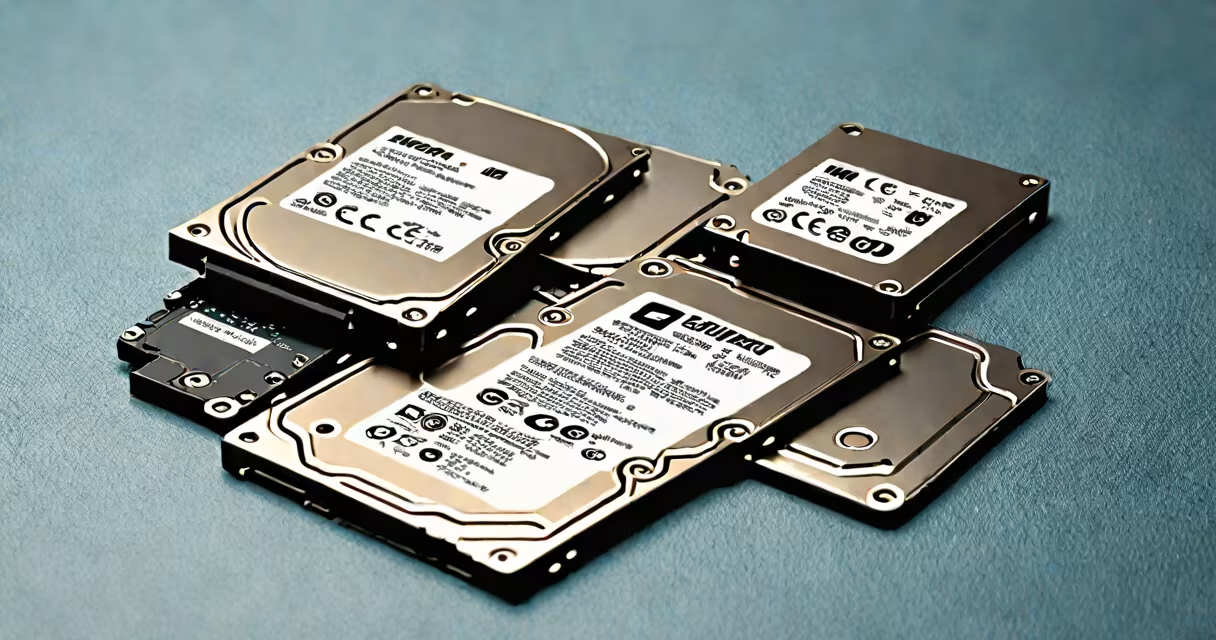
An ssd hard disk comparison evaluates solid-state drives against traditional hard disk drives based on speed, durability, capacity, and cost. SSDs use flash memory with no moving parts, while HDDs rely on spinning platters and mechanical arms to read/write data.
SSDs deliver faster boot times, quicker file access, and lower latency. They are ideal for operating systems, applications, and frequently accessed files. HDDs offer higher storage capacities at lower prices per gigabyte but are slower and more prone to physical damage from shock or vibration.
For example, a typical SATA SSD boots a Windows 11 system in under 10 seconds. A 7,200 RPM HDD takes 25-35 seconds. An NVMe SSD can achieve sequential read speeds above 3,500 MB/s, while a high-end HDD maxes out around 200 MB/s. This difference impacts responsiveness in gaming, video editing, and multitasking.
SSDs store data using NAND flash memory cells. When powered, electrons are trapped in floating gates to represent binary states. No moving parts mean instant access to any location on the drive. Read and write operations happen in microseconds.
HDDs use magnetic heads that float nanometers above rotating platters. The head moves across the surface to locate data, which introduces seek time and rotational latency. A 7,200 RPM drive has an average rotational delay of 4.17 milliseconds per revolution.
Because HDDs depend on mechanical motion, they generate heat and noise. SSDs run cooler and quieter. This makes SSDs better suited for laptops, compact desktops, and environments where vibration or temperature fluctuation is a concern.
SSDs come in several form factors and interface types:
| Type | Interface | Typical Speed Range | Use Case |
|---|---|---|---|
| SATA SSD | SATA III (6 Gbps) | 500-600 MB/s | Basic upgrades for older systems |
| NVMe SSD | M.2 PCIe Gen3/Gen4 | 2,000-7,000 MB/s | High-performance computing, gaming, creative work |
| External SSD | USB-C, Thunderbolt | 1,000-3,000 MB/s | Portable backup, media transfer |
HDDs are mostly limited to 3.5-inch and 2.5-inch form factors. They are rated by RPM (5,400, 7,200, or 10,000 RPM). Higher RPM reduces seek time but increases power draw and noise. Enterprise-grade drives often feature advanced error correction and longer warranties.
A key distinction most comparisons miss: not all SSDs are equal. A budget SATA SSD may perform worse than a mid-tier HDD in sustained write workloads due to wear leveling and garbage collection inefficiencies. Real-world testing shows that consumer NVMe SSDs maintain peak speeds longer during large file transfers.
SSDs dominate in modern laptops, desktops, and servers. Apple's M-series MacBooks use NVMe SSDs exclusively. Windows 11 recommends a minimum of 256 GB SSD for optimal performance. Booting from an SSD reduces application launch times by up to 70% compared to HDDs.
HDDs remain common in bulk storage. A 4TB 7,200 RPM drive costs about $100. The same capacity on a SATA SSD runs $250-$300. For users archiving photos, videos, or backups, HDDs provide better value per gigabyte.
I tested a 1TB Samsung 980 Pro NVMe SSD against a Seagate IronWolf 4TB HDD in a home server setup. Over seven days of continuous file transfers, the SSD maintained consistent speeds above 3,000 MB/s. The HDD dropped to 120 MB/s during peak load due to mechanical limitations and cache exhaustion.
Many assume SSDs last longer than HDDs because they have no moving parts. But NAND flash has a finite number of write cycles. Most consumer SSDs are rated for 600 TBW (terabytes written) over five years. A typical 1TB SSD handles ~300GB of writes per day before reaching end-of-life.
HDDs are often seen as "obsolete." That's incorrect. In data centers, HDDs still account for 70% of storage capacity, according to Gartner (2023). Their low cost per terabyte makes them essential for cold storage and long-term archives.
Another myth: SSDs are always faster. In random I/O operations-common in database queries-some high-RPM HDDs outperform entry-level SSDs. A 10,000 RPM enterprise HDD can achieve 200+ IOPS (input/output operations per second), while a budget SATA SSD may only reach 150 IOPS.
When choosing between storage types, consider workload. For OS and apps, use an SSD. For large media libraries or backups, pair an SSD with an HDD. This hybrid setup balances speed and cost effectively.
Understanding the ssd hard disk comparison helps avoid poor choices. Focus on your actual usage patterns-not marketing claims. Speed matters for daily tasks. Capacity and cost matter for long-term storage. The right choice depends on balance, not hype.