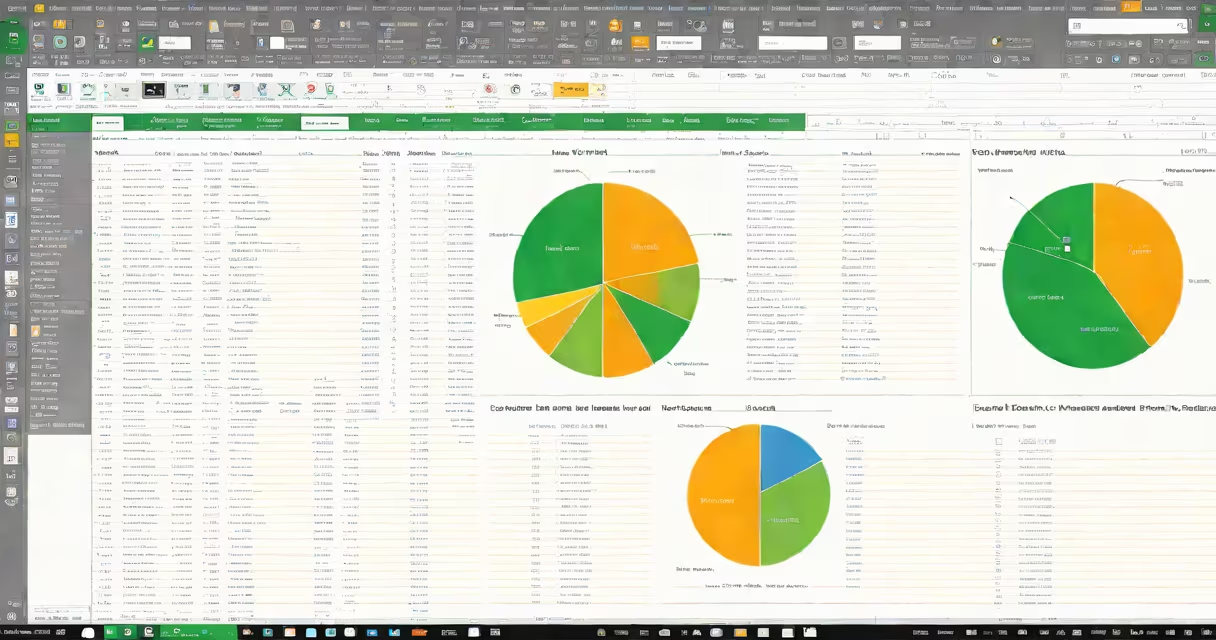
Learning Excel for beginners means mastering core spreadsheet functions-entering data, using basic formulas like SUM and AVERAGE, applying cell formatting, and organizing information visually. It's the foundation for managing personal finances, tracking projects, or analyzing small datasets.
Excel is a digital grid made of rows and columns. Each intersection is a cell. You type text, numbers, or formulas into cells. When you enter =SUM(A1:A5), Excel adds values in those five cells. This is how beginners start building practical tools.
Most people begin with simple tasks: listing grocery items with prices, tracking monthly spending, or making a class schedule. These activities teach navigation, selection, and editing-all essential skills. Without them, even basic data work becomes error-prone.
Excel runs on a system of references. Cell A1 is the top-left corner. As you move right, columns increase alphabetically (A, B, C...). Rows go down numerically (1, 2, 3...). The address of a cell combines both-like D7 or F12.
When you type a number or text into a cell, Excel stores it. Type =2+3 in another cell, and Excel calculates 5. Use =SUM(B2:B6) to total six values. These operations are automatic and update instantly if you change input data.
For example, if you track weekly income and expenses in a sheet:
Every Excel workbook contains sheets. By default, a new file has three. You can rename them-"Budget," "Contacts," "Inventory"-to organize content. Click the tab at the bottom to switch between sheets.
Key functions for beginners:
| Function | Purpose | Example |
|---|---|---|
| SUM | Adds numbers | =SUM(F1:F10) |
| AVERAGE | Finds mean value | =AVERAGE(G2:G15) |
| MAX/MIN | Locates highest/lowest | =MAX(H1:H20) |
| TEXTJOIN | Combines text with a separator | =TEXTJOIN(", ",TRUE,A1:A5) |
Formatting improves readability. Show a column and apply currency formatting ($1,250.00). Use bold for headers. Color-code cells based on values via Conditional Formatting-red for overspending, green for savings.
Small business owners use Excel to track inventory. A bakery logs daily sales, ingredient costs, and profit margins. With formulas, they spot which products generate the most revenue. They don't need software licenses-just a free version of Excel or Google Sheets.
Students use it to manage assignments. One student created a grade tracker with weighted categories: homework (30%), quizzes (20%), exams (50%). Each category used =AVERAGE() and =SUM() to calculate final scores. She updated grades weekly and saw her progress in real time.
Nonprofits often rely on Excel for donor records. A volunteer organized a list of 42 donors with columns for name, donation amount, date, and contact method. Using filters, she sorted by donation size and sent thank-you emails in bulk. No coding was needed-just basic navigation and filtering.
Many assume Excel requires advanced math or programming. That's false. Most beginners succeed with just arithmetic and logical thinking. You don't need to understand algorithms to use SUM or IF.
Another myth: Excel is only for finance. It's not. Teachers use it for attendance. Event planners track RSVPs. Homeowners build maintenance schedules. The tool adapts to context.
One key distinction: Excel is not a database. It handles small datasets well-up to 1 million rows-but struggles with complex relationships across large sets. For customer databases with 10,000 entries, Access or cloud-based tools are better. But for 50 people, Excel is sufficient and accessible.
Even experienced users make errors. Typing =SUM(A1:A10) instead of =SUM(A1:A10) causes a #NAME? error. Always check spelling. Use the Formula Bar above the grid to verify inputs. Hover over a cell with a red triangle to see warnings about inconsistent data.
I once helped my neighbor set up a household budget. She had paper receipts and a notebook. I showed her how to create a simple sheet: Date, Category, Amount, Notes. We used =SUM() to total monthly spending. After two weeks, she noticed she spent $180 on coffee. She cut back and saved $72 monthly. That change came from seeing data-not guessing.
This isn't rare. According to Microsoft's 2023 Workplace Learning Report, 68% of employees who completed basic Excel training reported improved task efficiency within one month. The same study found that learners who practiced with real-life scenarios-like tracking travel expenses or planning events-retained skills 40% longer than those using abstract exercises.
Start with a single goal: track your phone bill. Open Excel, label columns: Month, Cost, Carrier. Enter data for six months. Use =AVERAGE() to find the average cost. Apply color to show months above $80. You've just completed a real-world task using core Excel features.
Beginner-friendly resources exist. Microsoft offers free tutorials at support.microsoft.com/en-us/excel. YouTube channels like "Leila Gharani" provide short, focused videos on specific functions. Practice with templates from the Office website-budgets, calendars, to-do lists.
Learning Excel for beginners isn't about becoming a data scientist. It's about gaining control over everyday information. organizing family events, Excel gives you structure and clarity.
Once you master the basics, explore conditional formatting, pivot tables, and chart creation. But start small. Use one function at a time. Build confidence through repetition. Real progress comes from consistent practice, not perfection.
Even if you never use Excel professionally, knowing how to organize and analyze small amounts of data makes daily decisions easier. It reduces stress, prevents overspending, and reveals hidden patterns. That's the real value of learning Excel for beginners.