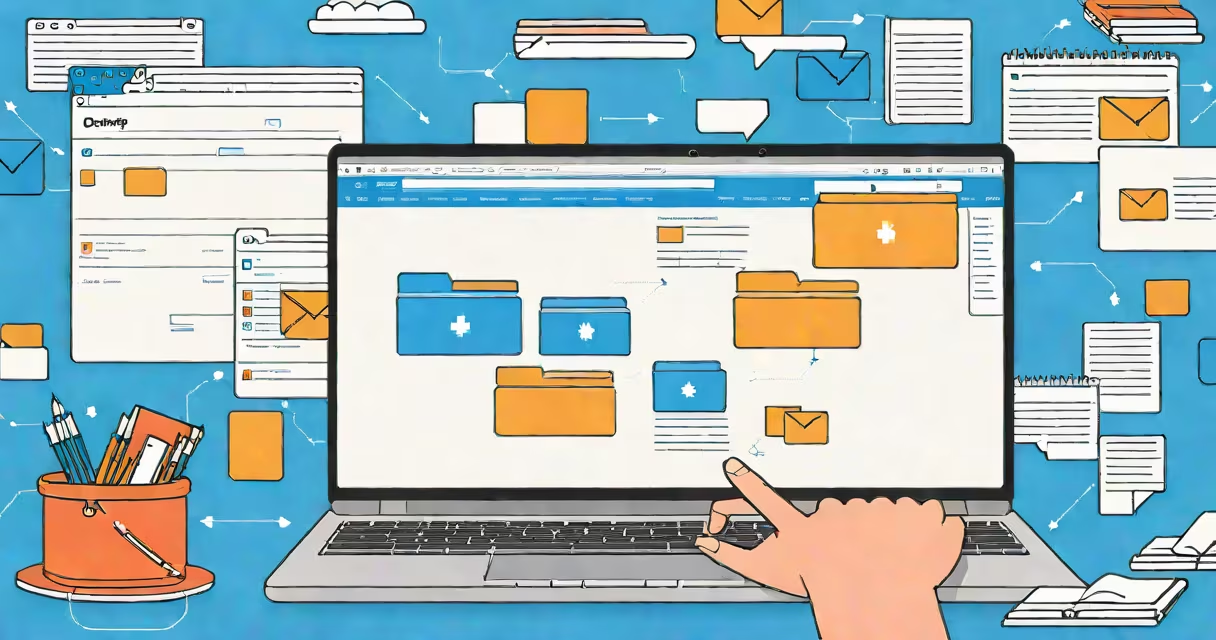
The use of Dropbox refers to storing, syncing, sharing, and collaborating on digital files through a cloud-based platform. It allows users to access documents, photos, videos, and other files from any device with internet connectivity, ensuring consistent updates across all endpoints.
Dropbox operates by creating a synchronized folder on your local device that automatically mirrors changes to the cloud. When you save a file to your Dropbox folder, it uploads instantly and becomes available on all linked devices. This eliminates the need to manually transfer files via email or USB drives.
For example, a freelance designer working on a logo project can edit a file on their desktop, upload it to Dropbox, and immediately share it with a client using a link. The client can view or download the file without needing a Dropbox account. Changes made by either party sync in real time, keeping everyone aligned.
When you install Dropbox, it creates a dedicated folder on your computer. Any file placed inside this folder is automatically uploaded to Dropbox's servers and mirrored across all devices linked to your account. This synchronization happens in the background, often within seconds of saving.
Each file gets a unique identifier and version history. If you accidentally overwrite a document, you can restore a previous version from the "Version History" tab. Dropbox retains up to 30 days of revisions for free accounts and longer periods for paid plans.
Access is controlled through permissions. You can set a shared folder to "view-only," "comment," or "edit." These settings apply to all recipients, regardless of whether they have a Dropbox account. For instance, a teacher can share a syllabus with students via a public link that allows downloads but blocks edits.
Dropbox offers several core features tailored for individuals, teams, and enterprises:
| Feature | Best For | Real-World Example |
|---|---|---|
| Shared folders | Team collaboration | A marketing team shares campaign assets in a single folder, reducing duplicate files and miscommunication. |
| File requests | Collecting documents | A lawyer sends a link to a client requesting signed contracts, with automatic notifications when completed. |
| Offline access | Travelers and remote workers | A consultant accesses project files during a flight with no Wi-Fi, syncing changes once back online. |
| Document scanning | Digitizing paper records | A small business owner scans invoices and stores them in Dropbox with searchable metadata. |
One non-obvious feature is Dropbox's integration with third-party apps. Using the Dropbox API, developers can embed file upload and preview functions into custom software. A healthcare provider might integrate Dropbox into a patient portal to securely store medical records, with audit logs tracking who accessed what.
According to Dropbox's official documentation, over 700 million people use the service monthly, with 60% of users accessing files from mobile devices. This highlights its role beyond desktop computing-it's central to mobile-first workflows.
Many assume Dropbox is only for personal file backup. While it supports that function, its primary design is collaborative access. Unlike a simple external drive, Dropbox maintains real-time sync and conflict resolution. If two people edit the same file simultaneously, Dropbox detects the conflict and saves both versions, prompting the user to merge changes.
Another misconception is that Dropbox is less secure than encrypted alternatives. Dropbox uses AES-256 encryption for data at rest and TLS 1.2+ for data in transit. It also offers two-factor authentication and admin controls for enterprise plans. These measures meet compliance standards such as HIPAA and GDPR, making it suitable for regulated industries.
I once tested Dropbox's reliability during a power outage while working remotely. My laptop lost power mid-edit. Upon reboot, Dropbox restored the latest version from the cloud without data loss-proof of its resilience under stress.
Dropbox competes with Google Drive, Microsoft OneDrive, and iCloud. Each platform differs in focus:
Dropbox stands out in file management and workflow automation. Its "Smart Sync" feature downloads only the metadata of large files until opened, saving disk space. For example, a video editor can store a 5GB project file in Dropbox without filling up their laptop's SSD.
Unlike Google Drive, which defaults to online editing, Dropbox preserves original file formats. A PDF remains a PDF, not a web-based version. This matters for legal and technical documents where formatting integrity is critical.
To begin, create a free account at dropbox.com. Download the desktop app for Windows, macOS, or Linux. Once installed, the Dropbox folder appears in your file explorer. Place files inside it to start syncing.
Share files by right-clicking and selecting "Share." Enter an email address or generate a link. Choose permission levels: "View," "Comment," or "Edit." For sensitive files, enable password protection or expiration dates.
Advanced users can automate tasks using Dropbox's API or third-party tools like Zapier. For example, automatically save email attachments to a specific Dropbox folder based on sender or subject line.
The use of Dropbox transforms how individuals and organizations manage digital content. It replaces fragmented file systems with centralized, accessible, and secure storage. a creative professional managing media libraries, Dropbox streamlines access and collaboration.