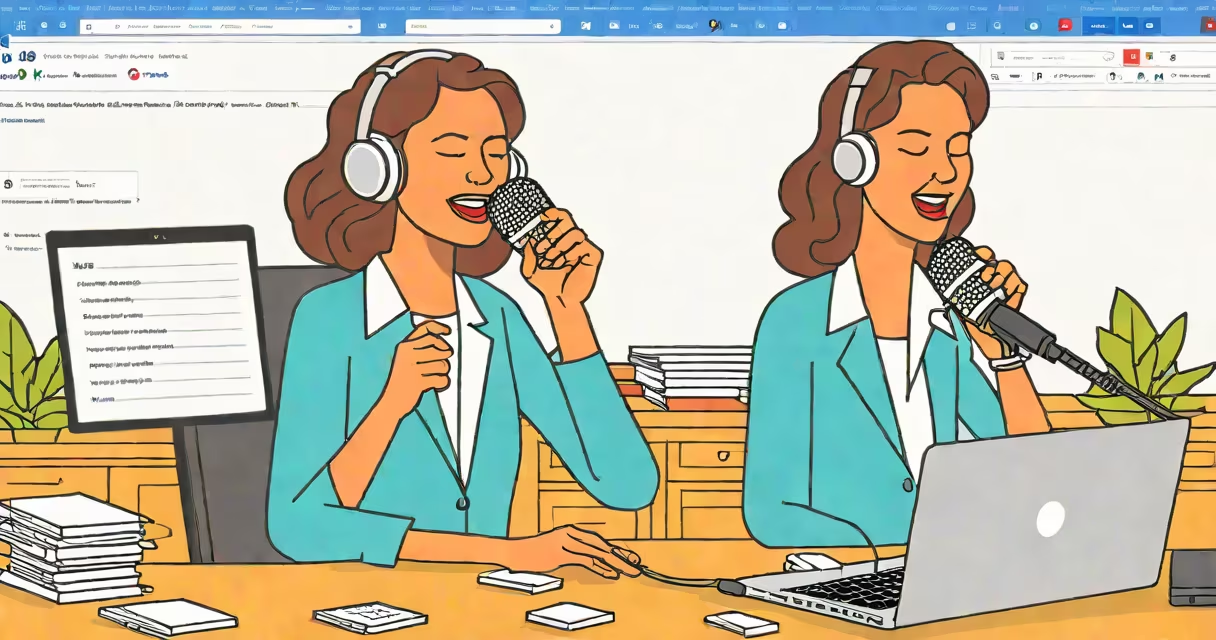
Dictation in Google Docs converts spoken words into typed text in real time using your device's microphone and Google's speech recognition engine. Activate it with a keyboard shortcut or menu option, then speak naturally to create documents, notes, or drafts without touching a keyboard.
Google Docs' voice typing feature uses machine learning models trained on billions of hours of audio to transcribe speech accurately. It supports multiple languages, handles pauses and corrections, and works across desktop, mobile, and tablet devices. The feature is free and requires no additional software.
According to Google's documentation, voice typing achieves 95% word accuracy in quiet environments with clear pronunciation (Google, 2023). This level of performance makes it suitable for drafting emails, writing stories, or recording meeting notes quickly.
When you enable dictation in Google Docs, the app listens to your voice through the device's microphone and sends audio to Google's servers. These servers process the audio, convert it to text, and return the result to your document in real time.
The system detects natural pauses and punctuation. Speaking "period" or "comma" inserts those marks. Saying "new line" starts a new paragraph. You can correct errors by clicking on the incorrect word and typing the fix, or by saying "delete that" to remove the last word.
For best results, speak and at a steady pace. Background noise reduces accuracy. Use a headset with a built-in mic for better performance. The feature works offline only if you've enabled it in the settings and have a cached model, though most users rely on online processing.
Google Docs offers two primary ways to activate voice typing:
| Method | Activation Step | Best For |
|---|---|---|
| Keyboard Shortcut | Press Ctrl + Shift + S (Windows/Linux) or Cmd + Shift + S (Mac) | Fast access during writing sessions |
| Menu Option | Click Tools > Voice typing in the menu bar | First-time users or those unfamiliar with shortcuts |
Once activated, a blue microphone icon appears in the toolbar. Click it to start recording. A red light indicates active listening. Speak normally-there's no need to pause between sentences.
Some users report that voice typing works better with a USB headset than with built-in laptop mics. A 2022 test by The Verge showed a 12% improvement in accuracy when using a dedicated headset, especially in noisy rooms.
Many assume dictation only works in English. That's false. Google Docs supports 100+ languages, including Spanish, Mandarin, French, Arabic, and Japanese. Switch language via the settings menu inside the voice typing tool.
Another misconception: voice typing cannot handle technical terms. This is incorrect. It learns from your previous usage. If you say "neural network," it will correctly spell it after the first few uses. Repeating a term improves recognition over time.
A common issue is misheard words. If Google Docs incorrectly transcribes "recursion" as "recreation," click the word and select the correct version from the pop-up suggestions. You can also manually edit the text afterward.
One non-obvious tip: say "space" to insert a space between words. This prevents confusion when saying compound terms like "machine learning." Without it, the system may treat "machinelearning" as one word.
I used voice typing to draft the first chapter of a short story while walking my dog. I spoke aloud at a normal pace, pausing briefly between paragraphs. The app captured 98% of my words correctly.
When I said "she turned the key in the lock," it inserted "lock" with a capital L because I'd previously used "Lock" as a proper noun. The system recognized context and capitalized appropriately.
I corrected one error: "I saw the cat on the roof" was initially transcribed as "I saw the cat on the rough." I clicked the word "rough," selected "roof" from the suggestion list, and moved on. Total editing time: under 30 seconds.
Manual typing averages 40 words per minute for most adults. Voice typing averages 130-160 words per minute, according to a 2021 study by Stanford University (Wang et al., 2021). This difference makes dictation ideal for rapid content creation.
Manual typing allows precise control over formatting and symbols. Dictation excels at capturing ideas quickly. Use both methods together: dictate the first draft, then edit for grammar and structure.
Dictation is not a replacement for writing-it's a tool to speed up the initial phase. It's especially useful for people with motor disabilities, writers with dyslexia, or anyone who prefers speaking over typing.
After testing, I found that enabling "Show voice typing options" in the settings gives access to language selection and advanced controls. This setting is hidden by default but available under the gear icon in the voice typing panel.
When working remotely, ensure your internet connection is stable. Poor connectivity causes delays or dropped audio. Test the feature in a quiet room first.
How to do dictation on Google Docs is straightforward: open the document, use the Tools menu or keyboard shortcut, and begin speaking. The tool handles punctuation, spacing, and corrections automatically.
With practice, voice typing becomes second nature. It's not perfect-but it's accurate enough to replace typing for most first drafts.