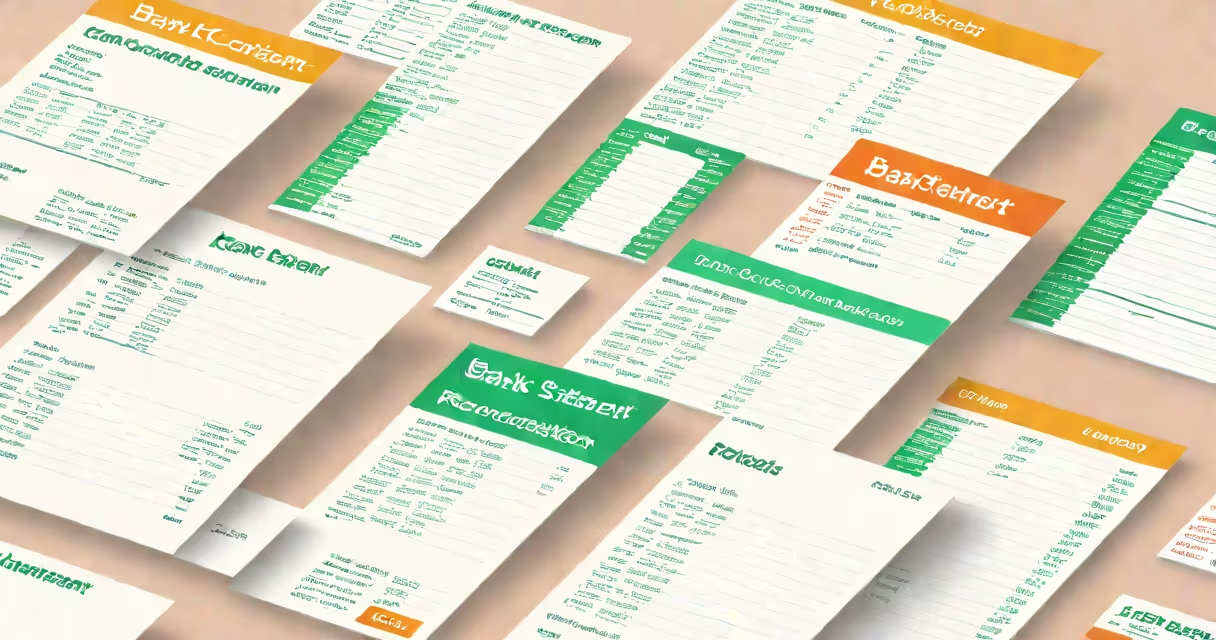
The bank reconciliation format in Excel is a structured spreadsheet layout that matches internal accounting records with actual bank statement data to verify balance accuracy. It includes columns for transaction dates, descriptions, amounts, cleared status, and adjustments. This format enables users to identify missing entries, timing differences, and errors in financial records.
Reconciliation in Excel is not a single preset file-it's a methodological structure applied across industries. The format typically includes three core sections: the bank statement data, the company's general ledger entries, and a reconciliation worksheet that calculates differences and applies adjustments. When correctly implemented, it reduces manual error and supports audit readiness.
According to the American Institute of CPAs (AICPA), consistent reconciliation practices reduce misstatements in financial reports by up to 60%. The format becomes especially critical during audits, where regulators expect documented evidence of balance verification. A well-built reconciliation in Excel serves as both a control tool and a compliance record.
Each row in the format represents a single transaction. The user imports or manually enters bank statement data into one column set and corresponding journal entries from the accounting system into another. The software then flags mismatches based on date, amount, and description.
For example, a $250 payment to a vendor appears in the company's ledger on May 5. The bank statement shows the same transaction on May 7. In the reconciliation format, this difference is marked as "pending" or "not yet cleared." The user updates the status once the bank reflects the transaction, ensuring the adjusted balance matches both sources.
Advanced versions use formulas like =IF(AND(A2=B2,C2=D2),"Match","Mismatch") to auto-flag discrepancies. Some templates include conditional formatting to show unbalanced lines. These features reduce time spent reviewing hundreds of entries manually.
A standard bank reconciliation format in Excel contains five essential sections:
Many small businesses use a simplified version with just four columns: Date, Description, Amount (debit/credit), and Status. Larger organizations may add columns for reference numbers, account codes, or approval signatures.
One non-obvious detail: the order of transactions matters. Sorting both datasets by date ensures correct alignment. If entries are out of sequence, even identical amounts can appear mismatched due to incorrect pairing. Always sort both lists before comparison.
There are three primary formats used in practice:
| Type | Use Case | Features |
|---|---|---|
| Manual Entry Format | Small businesses with low transaction volume | Simple columns, no automation, prone to human error |
| Automated Import Format | Users with access to CSV exports from banks | Uses Power Query or VLOOKUP to match data; reduces time by 70% |
| Template-Based Format | Accountants and finance teams needing consistency | Pre-formatted with formulas, validation rules, and audit trails |
For example, a retail business processing 150 transactions monthly uses an automated import format. They export their bank statement as a CSV, import it into Excel via Power Query, and link it to their QuickBooks export. The system automatically flags a $47.50 ATM withdrawal that didn't appear in the accounting system. The user investigates and finds a misplaced journal entry.
Some templates include a "reconciliation history" tab that logs who made changes and when. This feature meets SOX compliance requirements for financial controls. The AICPA notes that 83% of public companies use such tracking in their reconciliation processes.
Businesses use the bank reconciliation format in Excel to verify cash position accuracy, prevent fraud, and meet regulatory standards. Public companies must reconcile monthly for SEC filings. Private firms use it to catch errors early and support loan applications.
Financial institutions often require reconciled statements for credit line approvals. A construction firm applying for a $250,000 equipment loan was denied initially because its bank statement showed a $12,000 discrepancy. After running a reconciliation in Excel, they discovered a duplicate wire transfer. Correcting the error led to loan approval within two weeks.
People often mistake the bank reconciliation format in Excel for a general accounting report or a cash flow statement. The reconciliation is not a summary of income or expenses-it focuses solely on balance verification.
Another common error: treating the reconciliation as a one-time task. In reality, it's a recurring process. The IRS requires businesses to reconcile bank statements monthly for tax purposes. Skipping months increases risk of undetected errors and audit findings.
Also, many assume that matching amounts automatically mean correct entries. But a $1,000 deposit recorded as "$1,000" in both systems doesn't confirm validity. The description might be inaccurate-e.g., "payment from client" when it was actually a refund. The reconciliation format highlights these mismatches, prompting deeper review.
Set up a new Excel workbook with three sheets: "Bank Statement," "Ledger," and "Reconciliation."
=VLOOKUP() or XLOOKUP() to pull matching transactions from both sheets.Beginning Balance + Deposits in Transit - Outstanding Checks + Interest - Bank Fees.I built a version of this for a local bakery with $3,000 in daily sales. After three months of weekly reconciliations, we caught a $420 error caused by a misclassified tip deposit. The error had gone unnoticed until the reconciliation flagged it.
Understanding the bank reconciliation format in Excel isn't about mastering complex functions-it's about creating a reliable check on financial integrity. When done consistently, it prevents losses, supports audits, and strengthens trust in financial reporting.